 Donate with PayPal
Timing, independently.
Move one side a few milliseconds later, or delay both sides by different amounts. Each control affects its own channel.
Free plugin / Windows 64-bit / Version 1.0.0
A little timing.
A wider sense of space.
Give your instruments a more spacious stereo image. Set the delay and level of the left and right channels independently, with four simple controls.
Free to use, with no limitations. Support development with an optional donation of any amount.
Read the guideWindows 64-bit VST3 Stereo tracks
01 / The idea
Small differences in timing can give an instrument a broader, more open feel across the stereo field.
Try it on guitars, keyboards, synths, plucked instruments or percussion. Smart Track Delay lets you shape that sense of space by adjusting the two sides separately.
It delays the signal itself. There is no extra dry signal, feedback or series of echo repeats, so you stay in control of the timing and level of each channel.
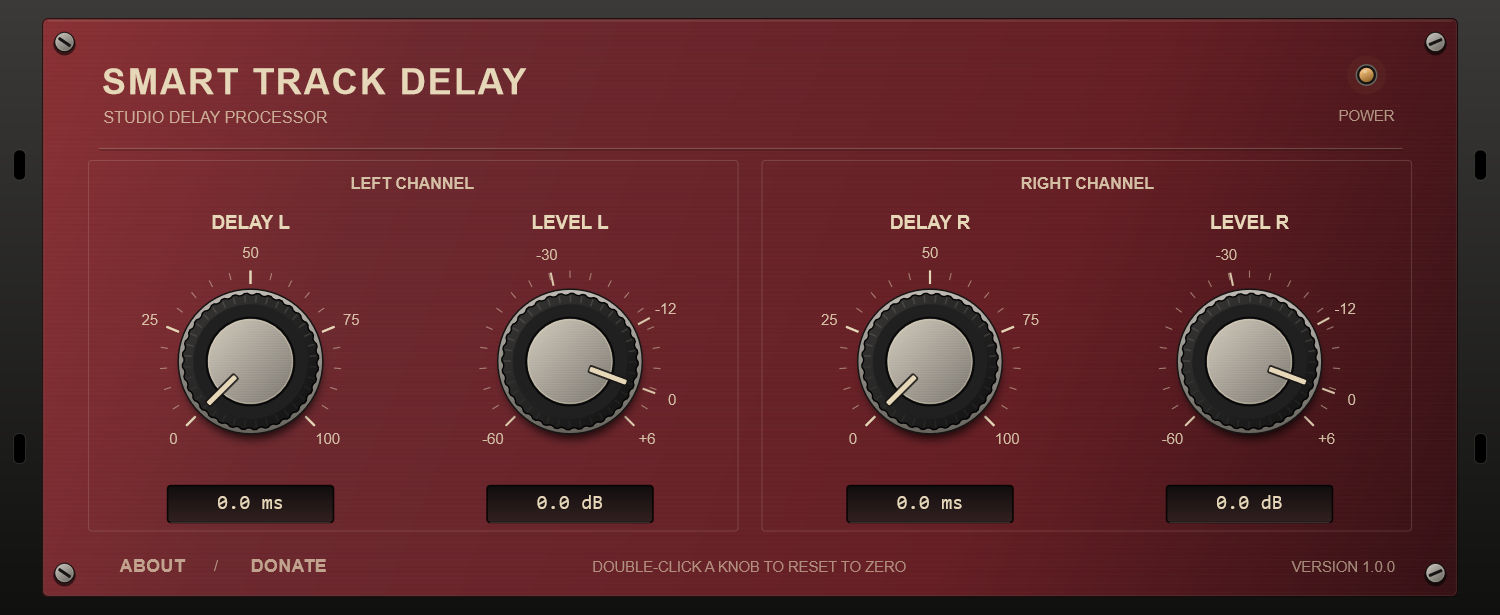
Move one side a few milliseconds later, or delay both sides by different amounts. Each control affects its own channel.
Trim or boost each side separately to find the stereo balance that fits your instrument and your mix.
A vintage-inspired interface with clear knobs and editable values. Double-click any knob to return its value to zero.
Load it on a stereo track or group. A mono recording can stay a mono file when played through a stereo track.
02 / User guide
You need Windows 64-bit and a DAW that supports VST3 plugins and stereo inserts.
Unzip the download to a temporary folder. Inside you will find the complete SmartTrackDelay.vst3 folder and a user guide.
Place SmartTrackDelay.vst3 in the standard Windows VST3 location:
C:\Program Files\Common Files\VST3Keep the Contents folder and everything inside it. Windows may ask for administrator permission.
If SmartTrackDelay does not appear, run your DAW's plugin scan or rescan. Look for it in the effects list, usually under Delay.
Insert the plugin on a stereo channel. For a mono guitar recording, play the mono file on a stereo track or route it to a stereo group, then add the plugin there.
0–100 ms
Delays the left channel only. At 0 ms, that side plays without an added delay.
−60 to +6 dB
Adjusts the left channel only. At 0 dB, its level is unchanged.
0–100 ms
Delays the right channel only. Set a different timing to shape the stereo image.
−60 to +6 dB
Adjusts the right channel only. Lower it to soften that side, or raise it for more level.
Drag a knob horizontally or vertically. Click its numerical value to enter a precise setting. Double-click the knob itself to reset it to 0 ms or 0 dB.
Good to know
Yes. Smart Track Delay is free to use, with no limitations. Donations are entirely optional; you can choose any amount to support its development.
Yes. The recording can remain a mono audio file, but the plugin needs a stereo track or group to keep the left and right outputs separate. Check that the instrument reaches both input channels.
A mono channel may keep only one processed output or combine the two outputs. To hear and control both sides independently, use a stereo channel.
No. Each channel contains its delayed signal. There is no feedback or added dry signal. Longer offsets may be heard as a separate arrival on the other side.
No. It makes the channel much quieter, but it is not a hard mute. At 0 dB the input level is preserved; positive values increase it.
Yes. All four controls support DAW automation. Their settings are saved with your DAW project and with plugin presets supported by your host.
03 / Get in touch
A question, an idea, or something that could work better?
Tell Andrea about your setup and how you use Smart Track Delay. For a support question, include your DAW name and version.
Visit Andrea's website